ThinkNode M3 LoRaWan Tracker With GPS/WiFi/BLE function For Indoor and Outdoor Positioning
Model ILM13803D
Hardware Overview
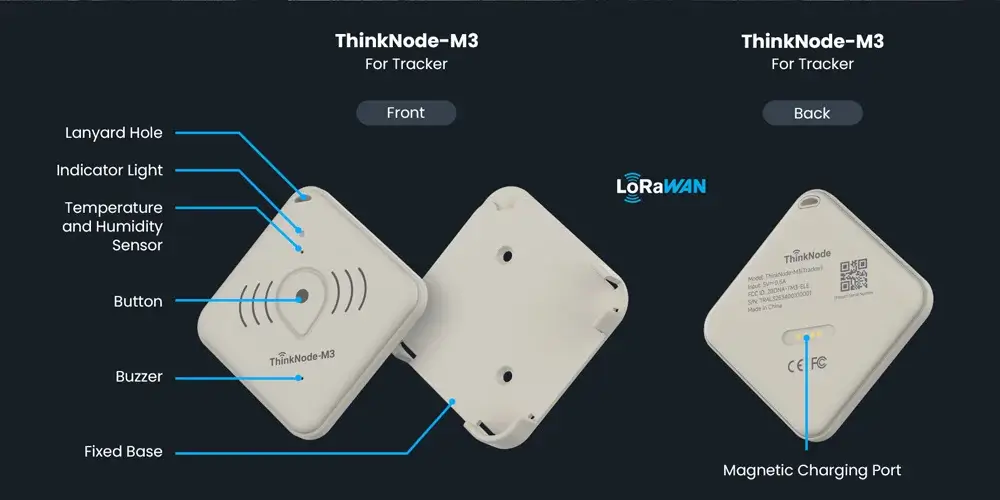
Firmware Flash:
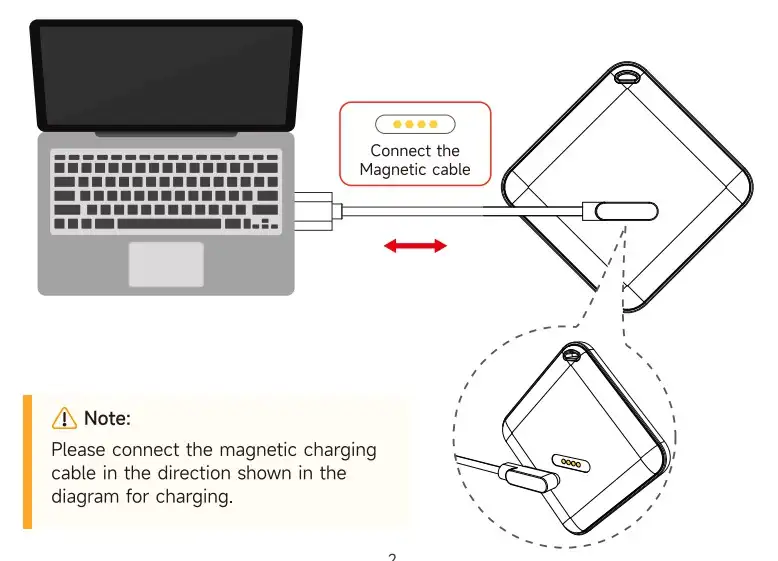
Connect the ThinkNode-M3 charging cable: attach the magnetic end to the ThinkNode-M3’s magnetic charging port, and plug the other end into a USB-A port on your computer.
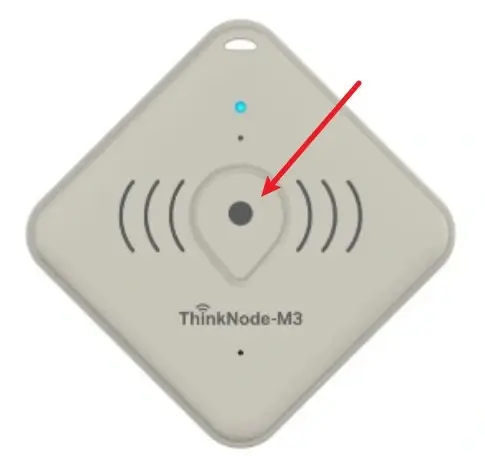
Press and hold for 20 seconds to enter flash mode, 20 seconds.
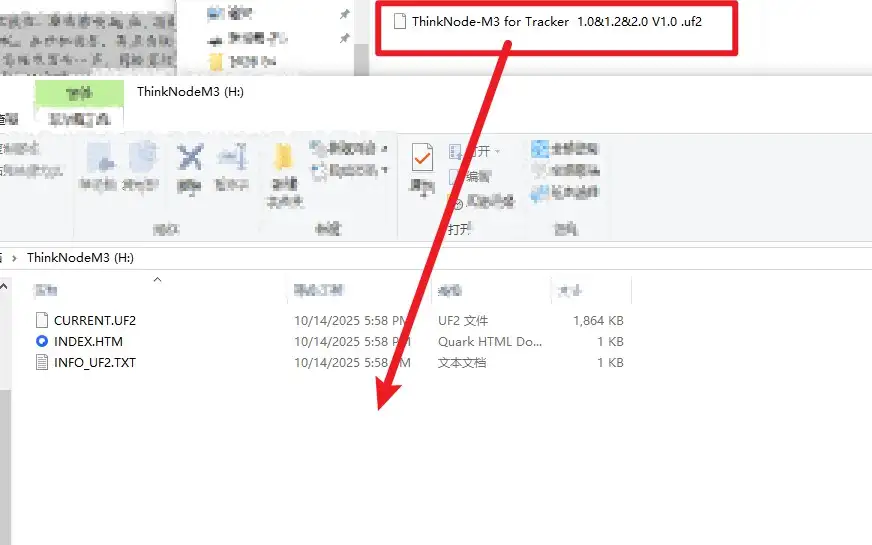
Drag the firmware file into the newly created drive letter to complete the firmware update.Firmware location:https://github.com/Elecrow-RD/ThinkNode-M3-Tracker-Card---LoRaWAN-Tracker-With-GPS-WiFi-BLE-function/tree/master/factory_firmware
Indicator light effects:
| Operation | Light and buzzer effects | |
|---|---|---|
| Press and hold for 3 seconds to turn on | The blue light turns on, the buzzer sounds for 2 seconds, and the red light turns on | |
| When sending a message or connecting to the app | The blue light is on and flashes three times every second. | |
| When the device is turned off and charging | The red indicator light flashes continuously; the red “Fully Charged” indicator light stays on. | |
| Press and hold for 10 seconds to reset the device and force a restart. | ||
| Press and hold for 5 seconds to enter sleep mode and save battery power |
Flash the firmware
| 1. Enter programming mode by pressing and holding the reset button for 15 seconds. | A drive labeled “ThinkNodeM3” will appear on your computer; drag the firmware you want to flash into it. |
|---|---|
| 2. Press and hold for 10 seconds to exit programming mode, then press and hold for 3 seconds to turn on the device. |
Practical Configuration Guide
1.Adding a ThinkNode-M3 Device via the ThinkNode-M3 Web Interface
1.1 Connect the ThinkNode-M3 charging cable: attach the magnetic end to the ThinkNode-M3’s magnetic charging port, and plug the other end into a USB-A port on your computer.
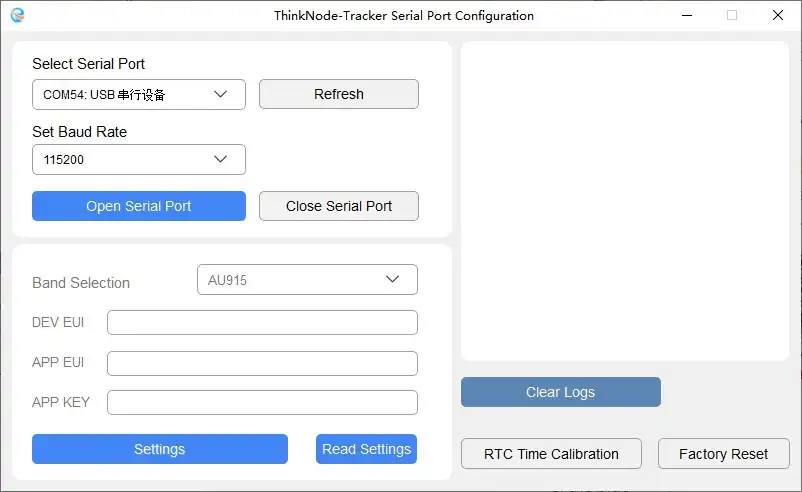
Download the program from the following link: https://github.com/Elecrow-RD/ThinkNode-M3-Tracker-Card---LoRaWAN-Tracker-With-GPS-WiFi-BLE-function/tree/master/ThinkNode-Tracker-Host%20PC
Double-click the ThinkNode-Tracker executable file, as shown in the figure.

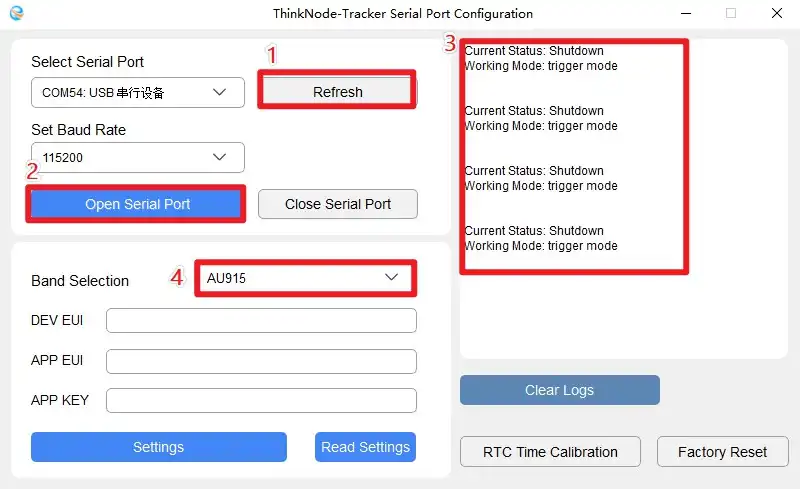
1.4 Click the “Refresh” button to refresh the screen, then click the “Open Serial Port” button to open the serial port. The print window will then display real-time device status information. Select the frequency bands supported in your region based on your actual situation.
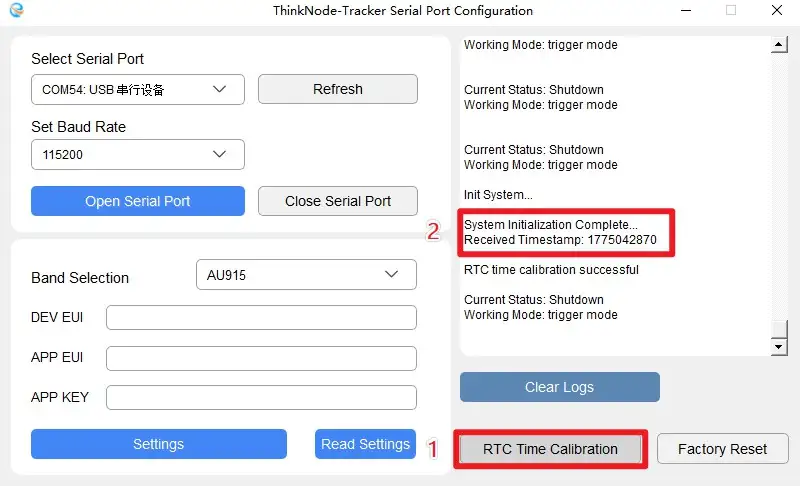
1.5 Click the “RTC Time Calibration” button to calibrate the RTC clock. If the message “RTC time calibration successful” appears in the interface's print window, the calibration was successful. Minimize the ThinkNode-M3 serial configuration window.
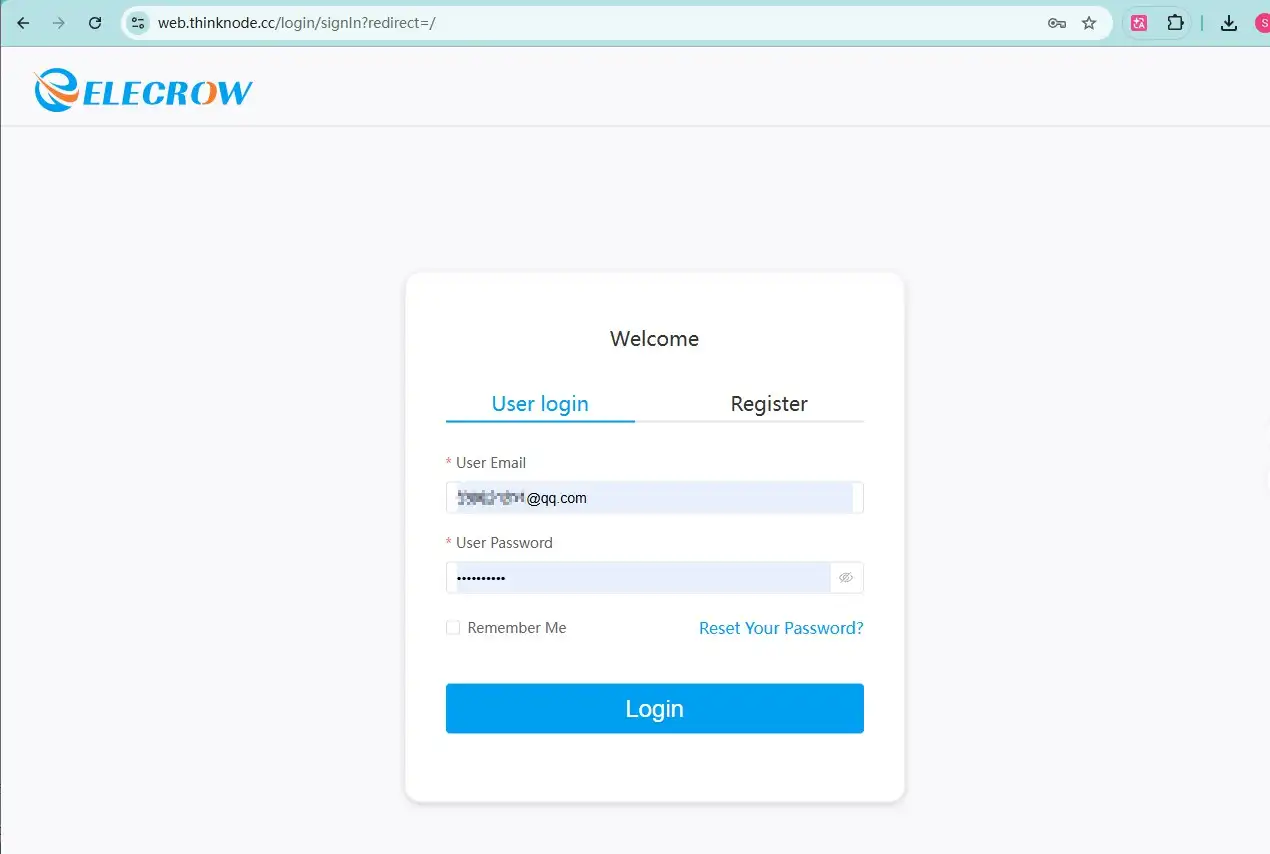
1.6 Go to https://web.thinknode.cc/ to register an account and log in.
1.7 Select “Tracker Overview,” click the “Add Tracker” button to add a tracker, and then click the “Click Here” button to proceed with the specific steps.
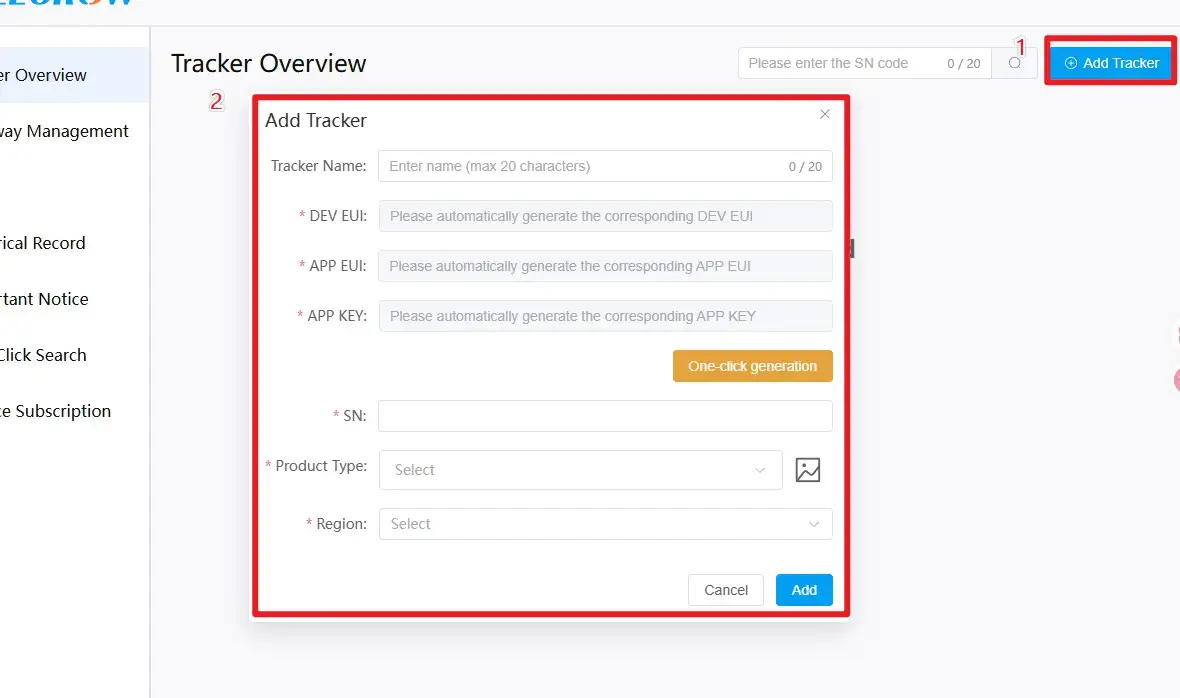
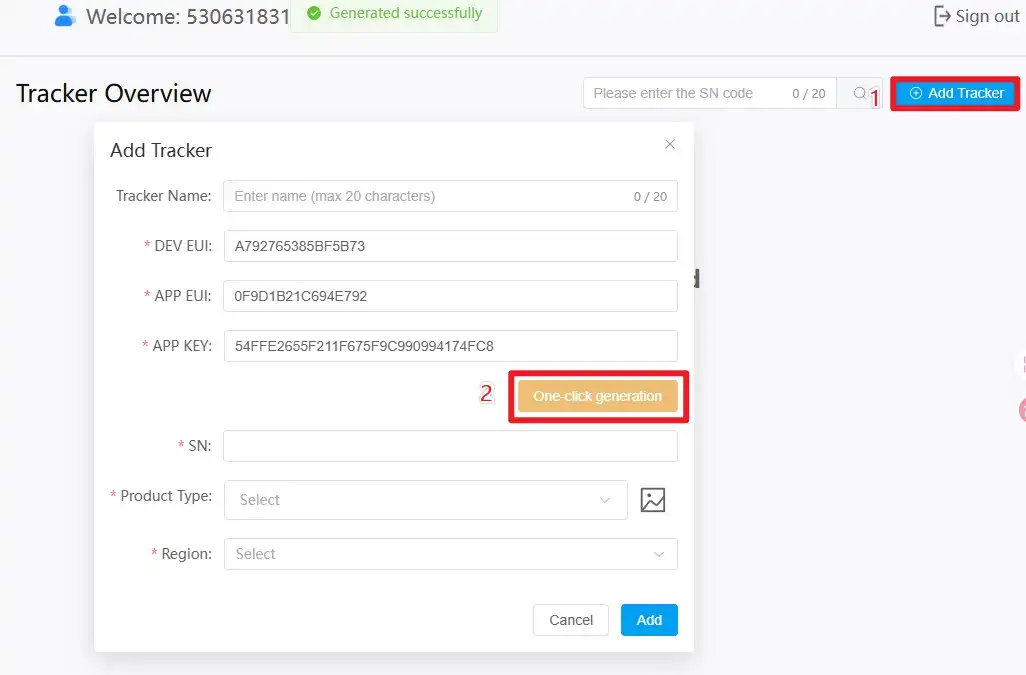
1.8 Click the “One-click generation” button, then click the “Confirm” button to generate the DEV EUI, APP EUI, and APP KEY with a single click.
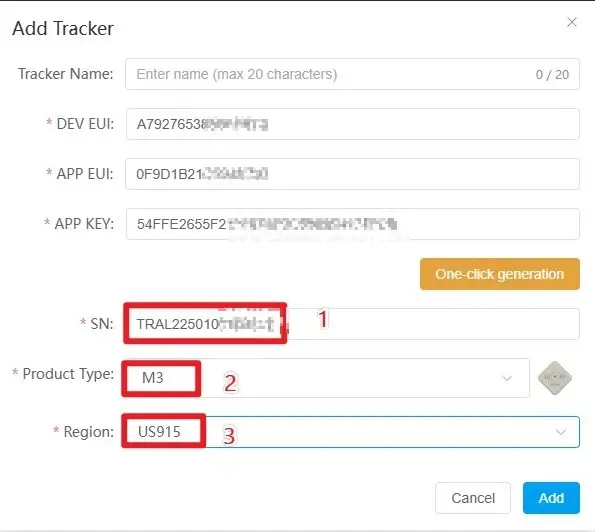
1.9 Customize the tracker name, enter the SN code located on the back of the ThinkNode-M3 device, select the region, and click the “Add” button to successfully add the tracker information to the webpage.
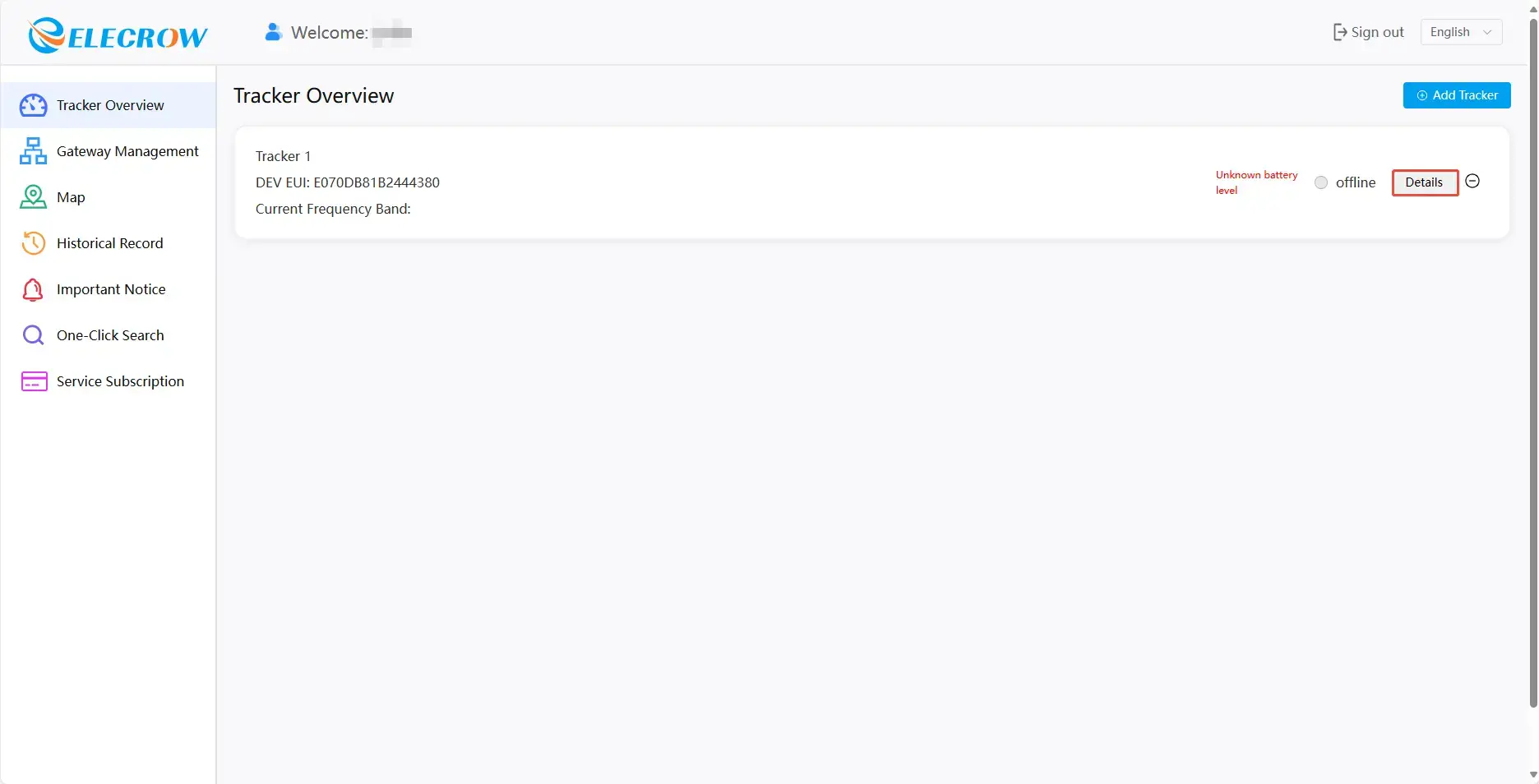
1.10 After successful addition, click the “Details” button on the page.
1.11 Copy the automatically generated DEV EUI, APP EUI, and APP KEY into the corresponding fields in the ThinkNode-M3 serial configuration window (make sure there are no spaces when copying), then click the “Settings” button to write the data to the device.
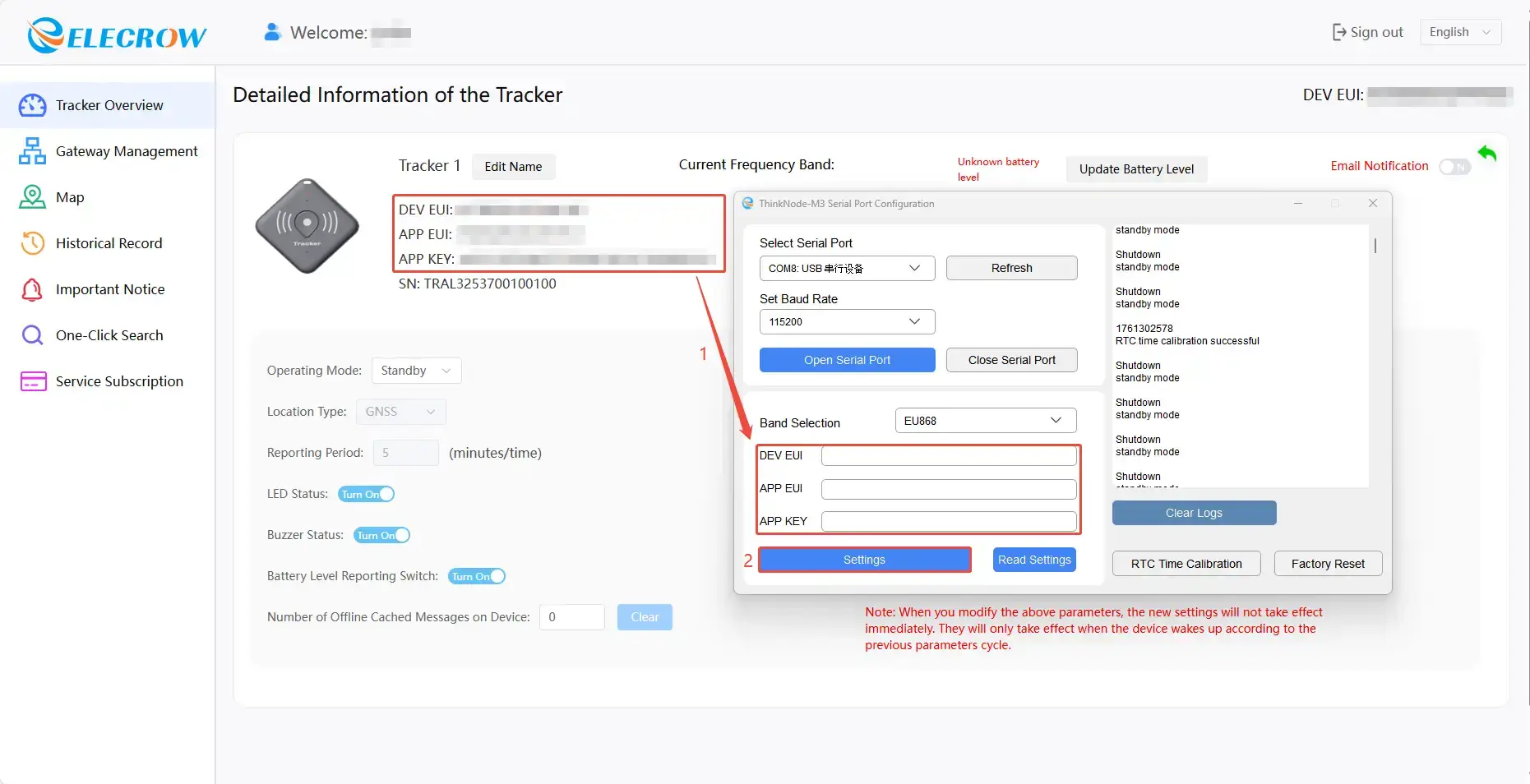
1.12 When the print window displays the information shown in the figure below, the data has been successfully written. Minimize the ThinkNode-M3 serial configuration window.
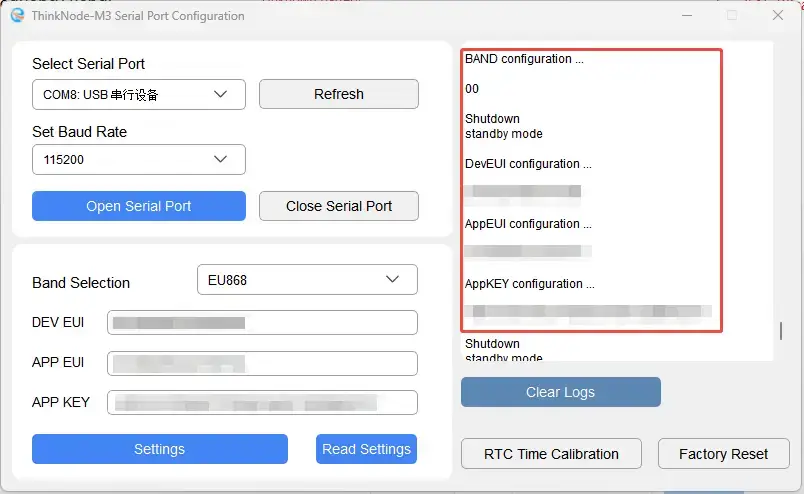
2.Configure the gateway via the web interface (this demonstration uses the ThinkNode-G1 EU868
2.1 Charge the gateway. The “Y”-shaped indicator light on top of the gateway will slowly flash green. Wait 90 seconds, then press and hold the button shown in the figure below for 5 seconds. The “Y”-shaped indicator light on top of the gateway will slowly flash blue, indicating that the gateway has entered configuration mode. (Note: The gateway’s frequency band must correspond to the selected region and frequency band.)
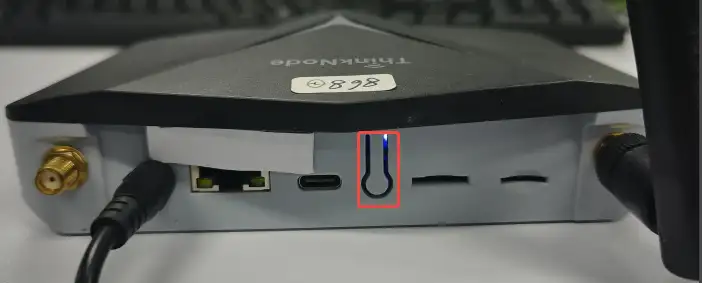
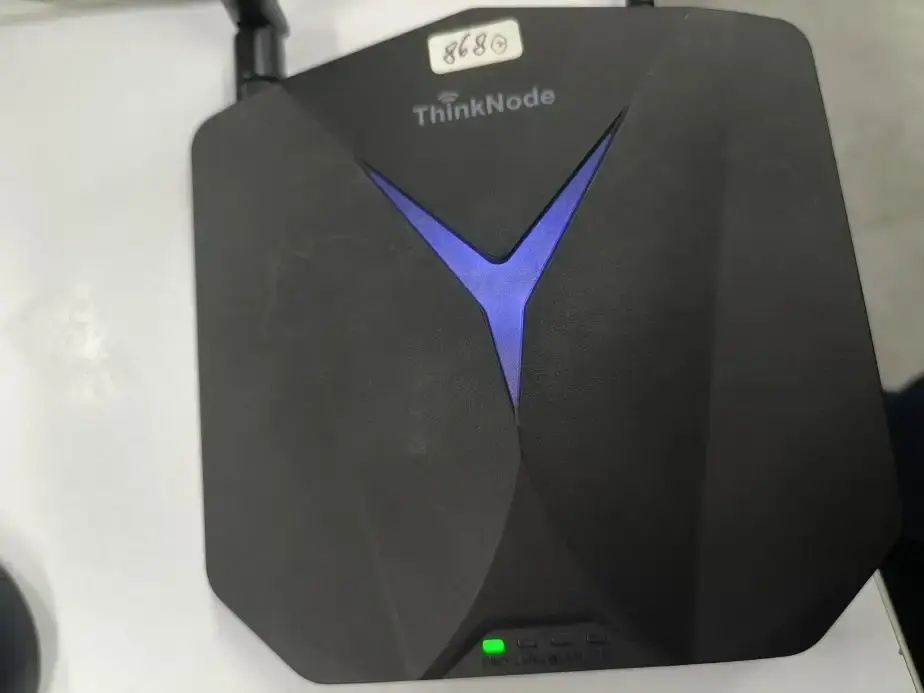
2.2 Connect to the gateway’s Wi-Fi.
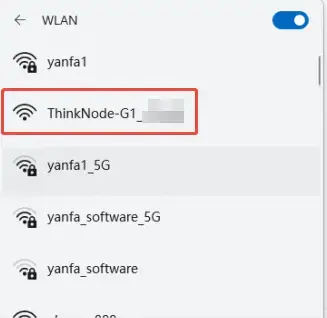
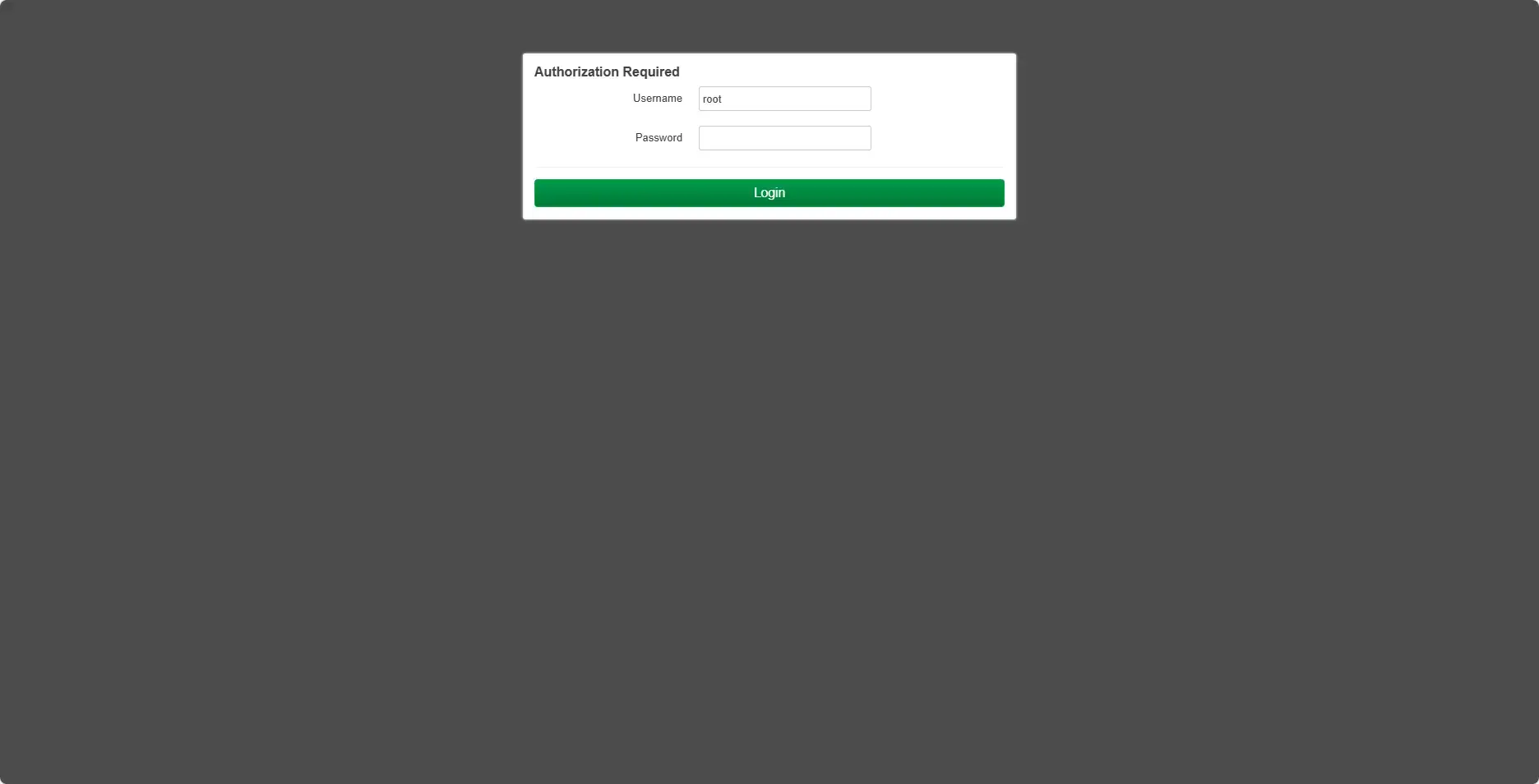
2.3 Enter the URL 192.168.1.1 in your browser (this URL remains fixed), then enter the username and password; by default, both are “root.” (Note: You can only access this URL after successfully connecting to the gateway’s Wi-Fi.)
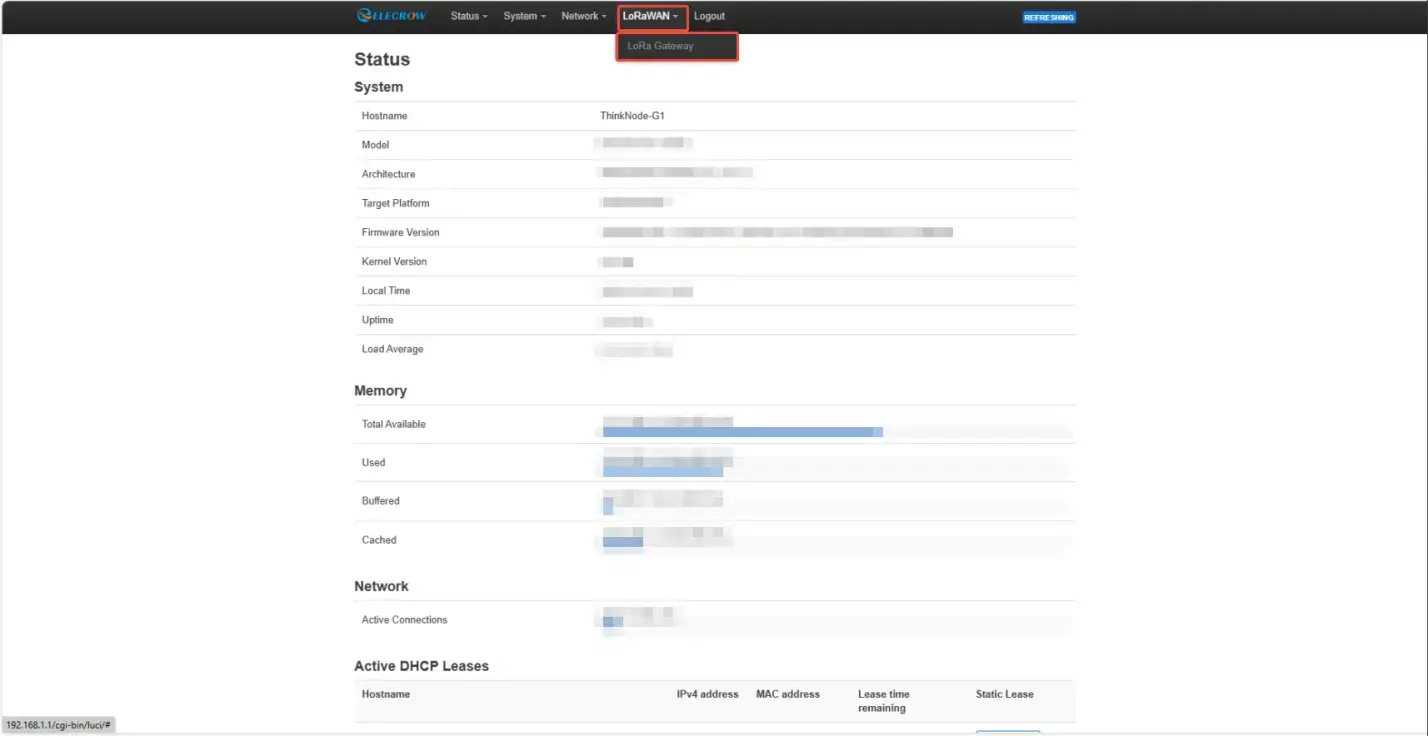
2.4 Select “LoRaWAN” and click the “LoRa Gateway” button.
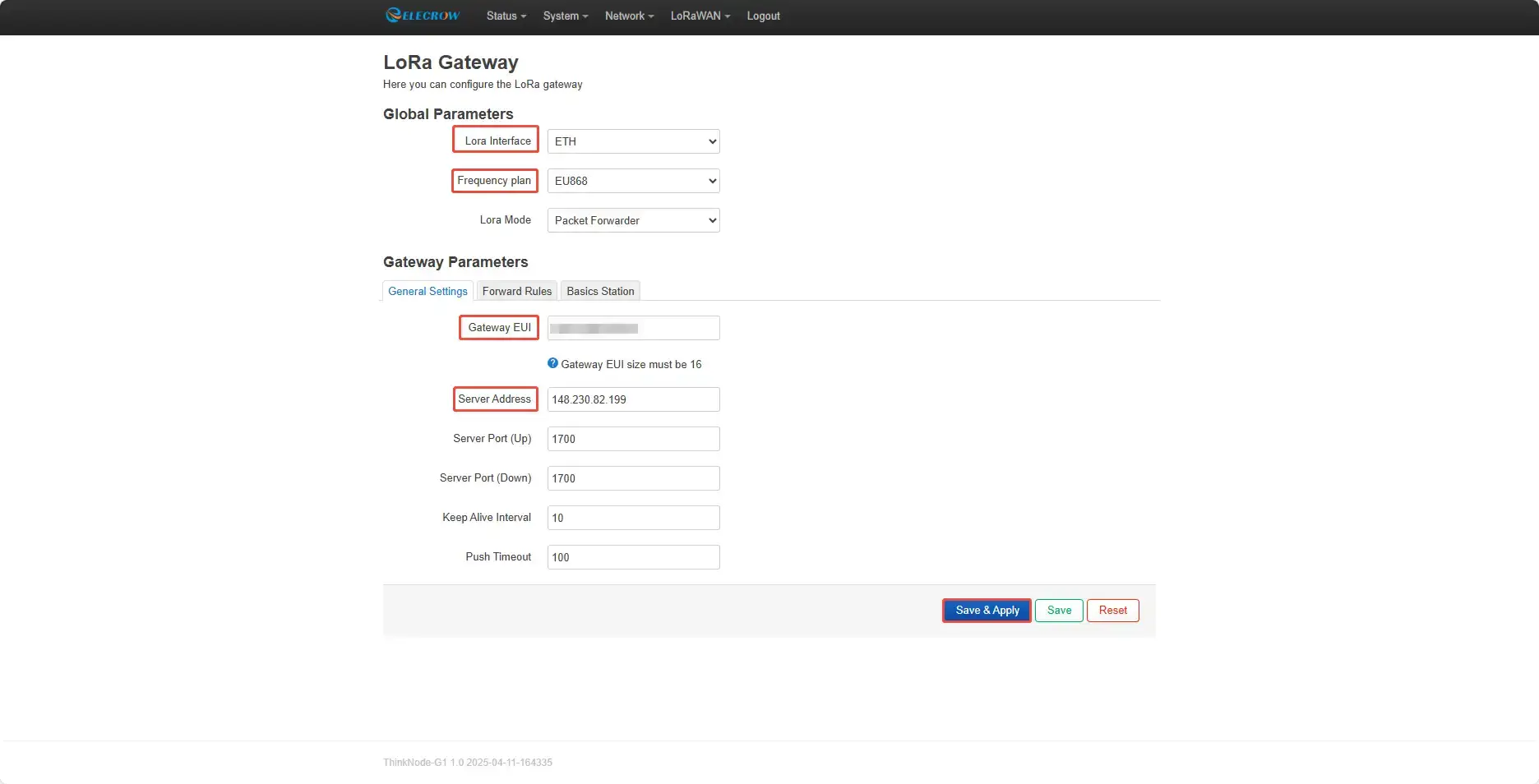
2.5 Select a connection method (choose one based on your actual situation)
2.5.1 Ethernet connection:
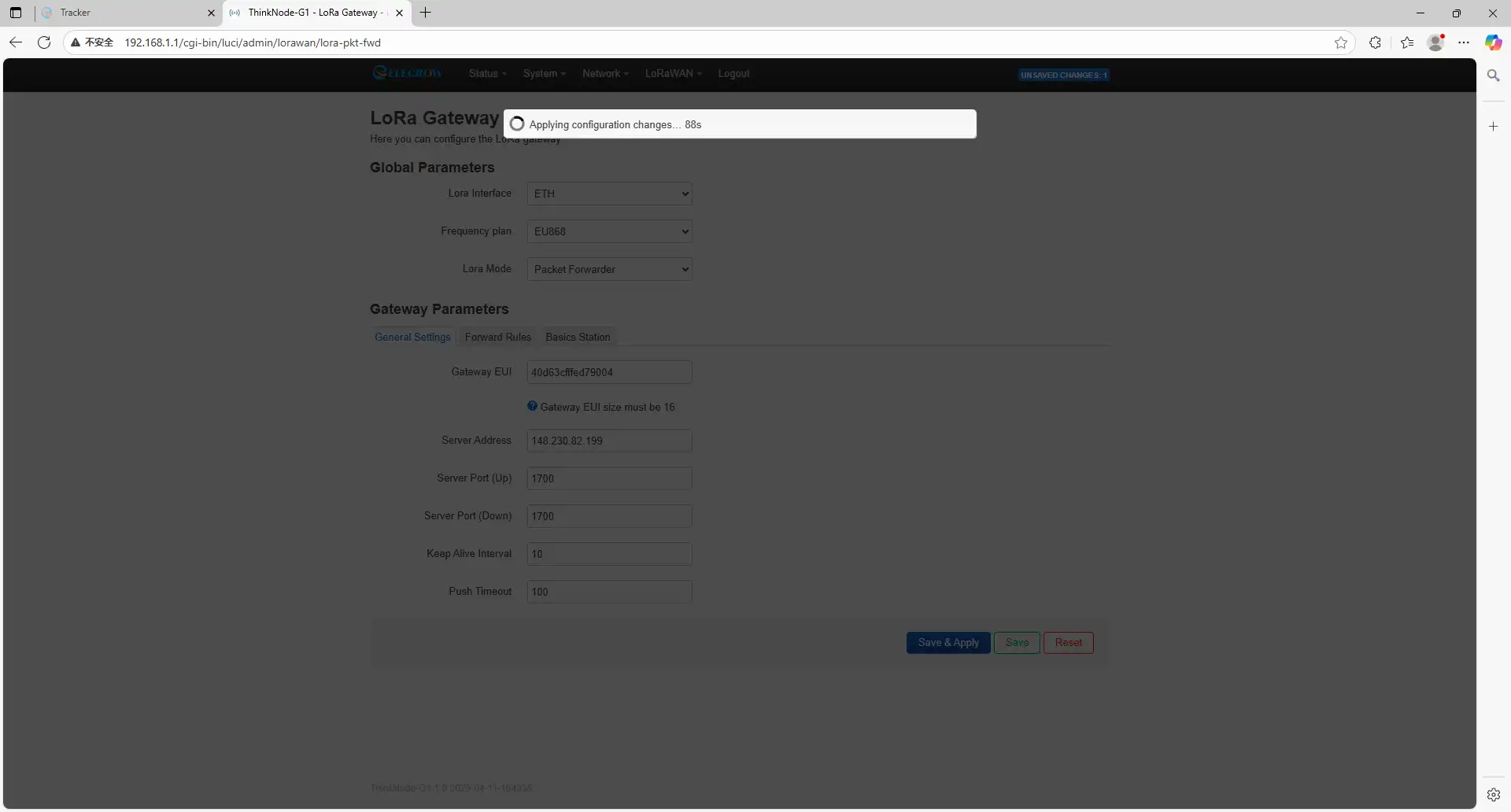
2.5.1.1 If you select the Ethernet connection method, choose “ETH” for “Lora Interface” and “EU868” for “Frequency plan” (select the corresponding band based on your actual situation). The Gateway EUI will be randomly generated (users may also set it manually, but a previously bound string cannot be reused unless the corresponding gateway information is deleted on the ThinkNode-M3 web page; it will become available again the next day). Copy this string for subsequent operations. The Server Address is fixed at 148.230.82.199. If your Server Address differs from this, manually change it to 148.230.82.199. Leave other settings at their defaults, then click the “Save & Apply” button to save and apply the changes.
2.5.1.2 Wait for configuration.
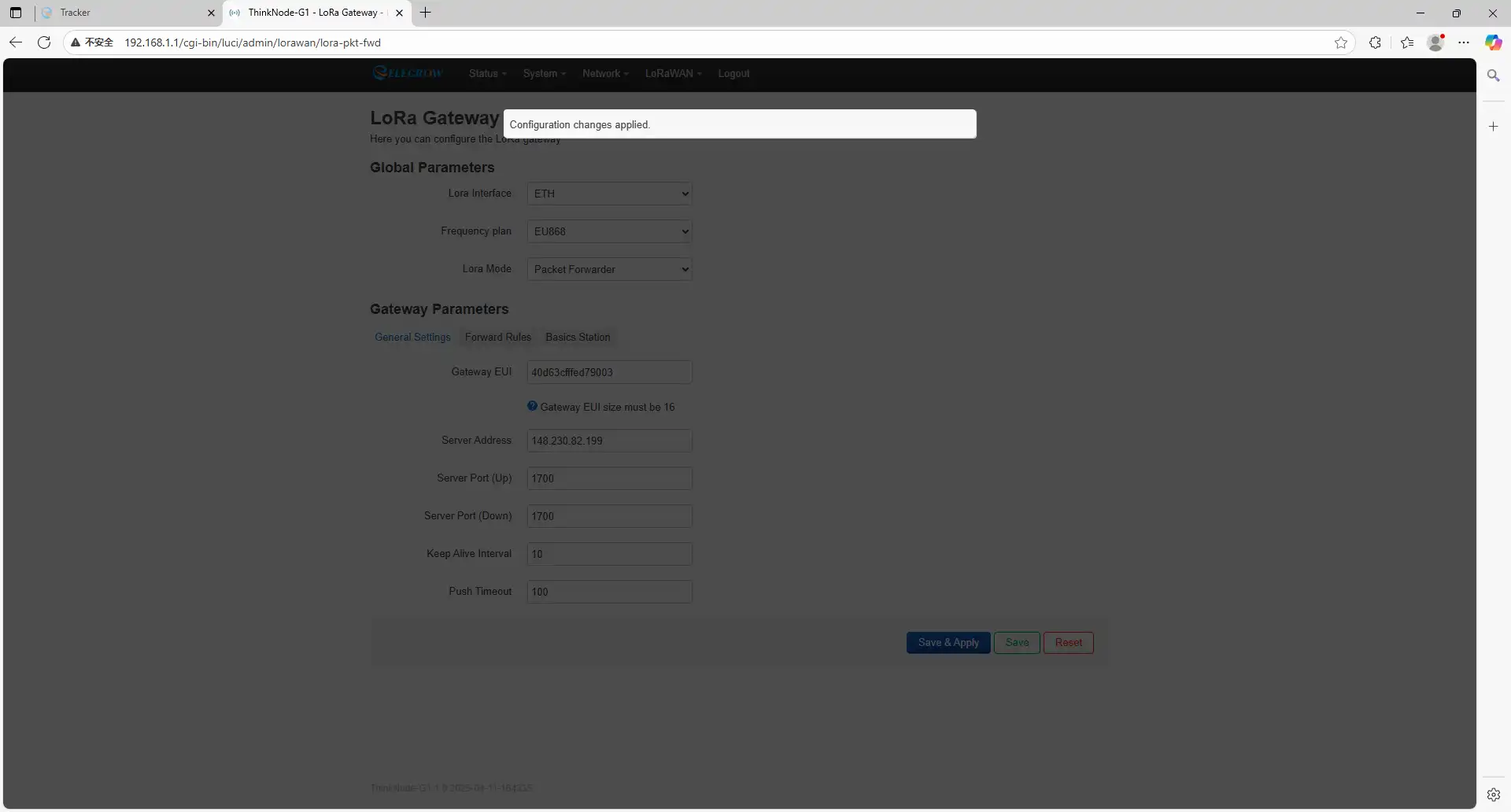
2.5.1.3 Configuration successful. Then connect the Ethernet cable to the gateway. Wait for the gateway’s LoRa indicator light to turn green.
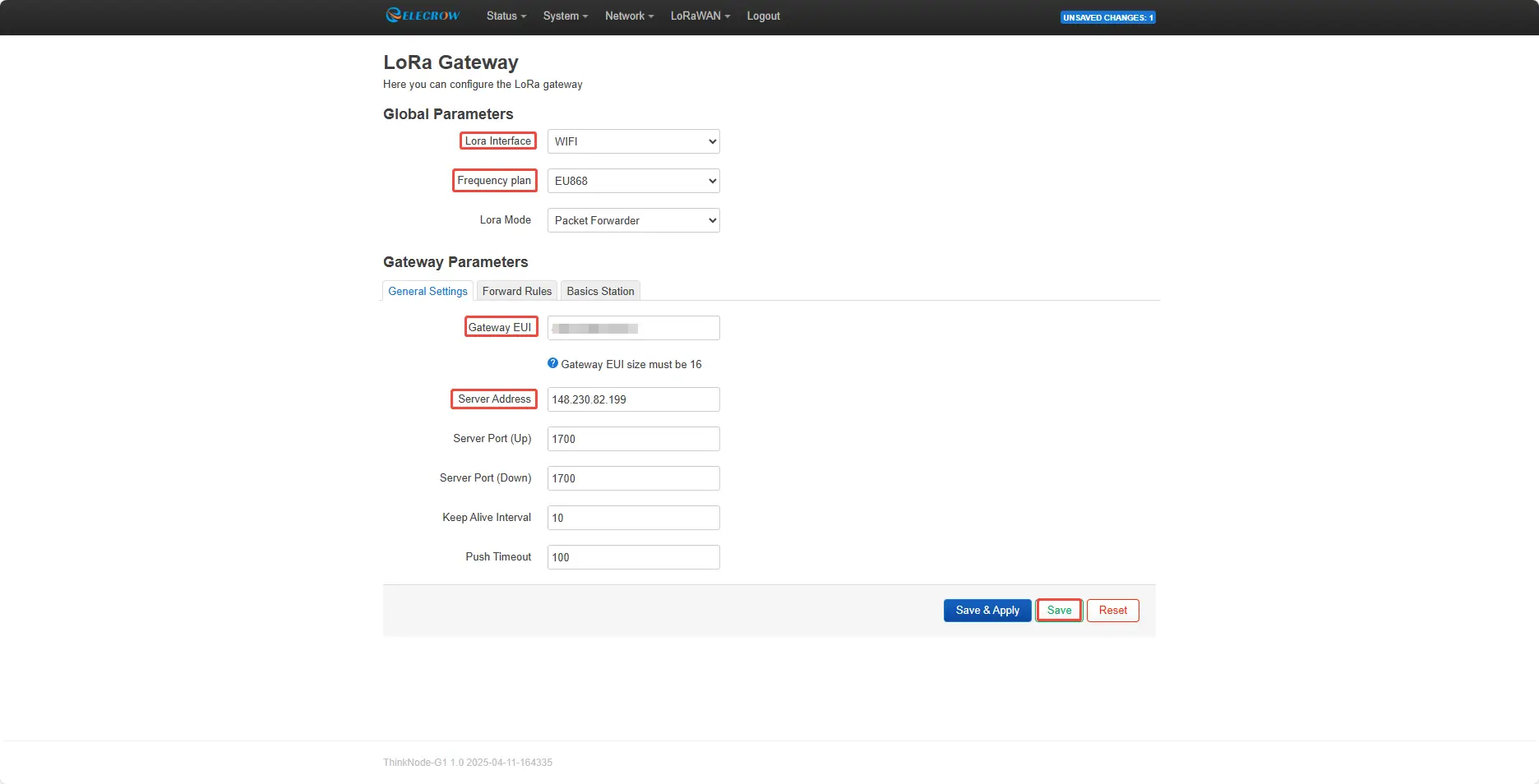
2.5.2 Wi-Fi Connection: 2.5.2.1 If you choose the Wi-Fi connection method, select “WIFI” under “LoRa Interface” and “EU868” under “Frequency Plan” (select the appropriate frequency band based on your actual situation). The Gateway EUI will be randomly generated (users may also set it manually, but once bound, the string cannot be reused unless the corresponding gateway information is deleted on the ThinkNode-M3 web interface, in which case it can be reused). Copy this string for subsequent operations. The Server Address is fixed at 148.230.82.199. If your Server Address differs from this
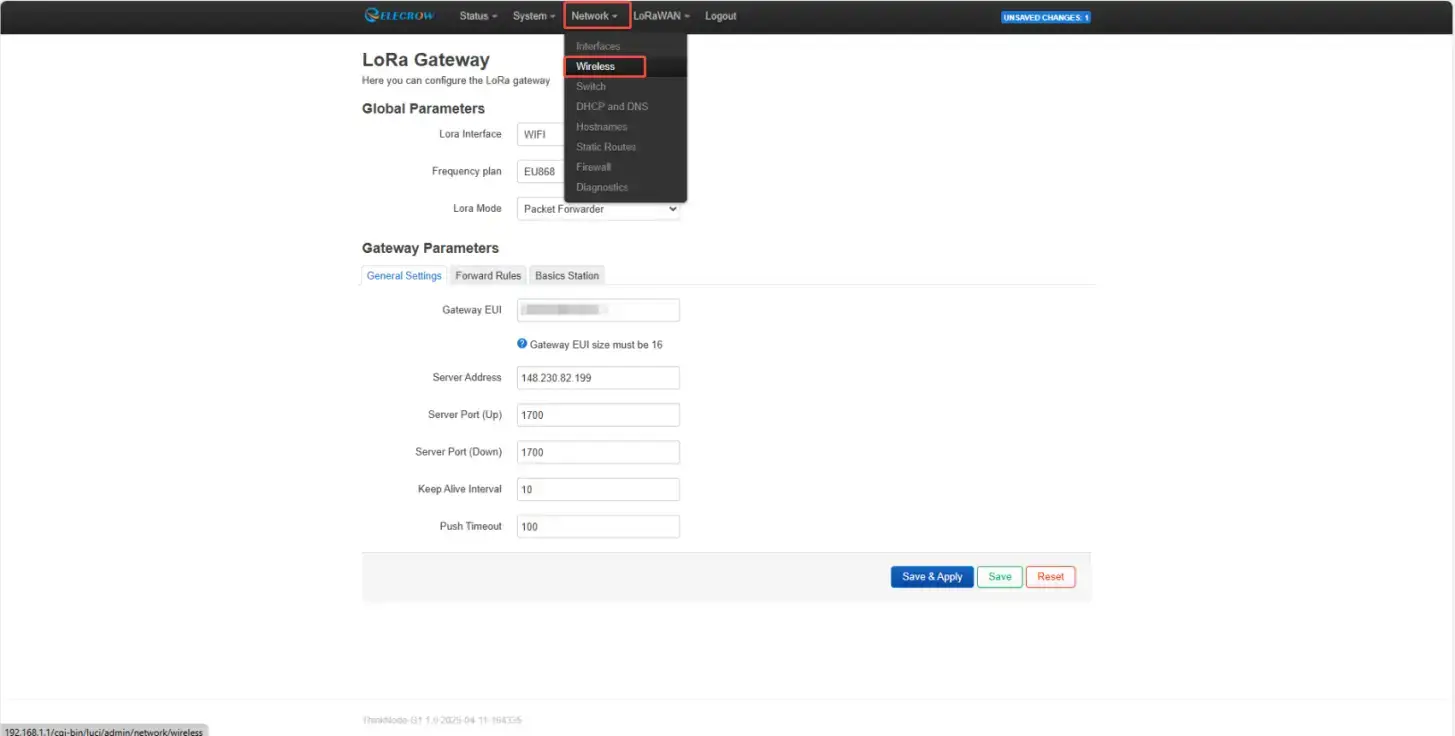
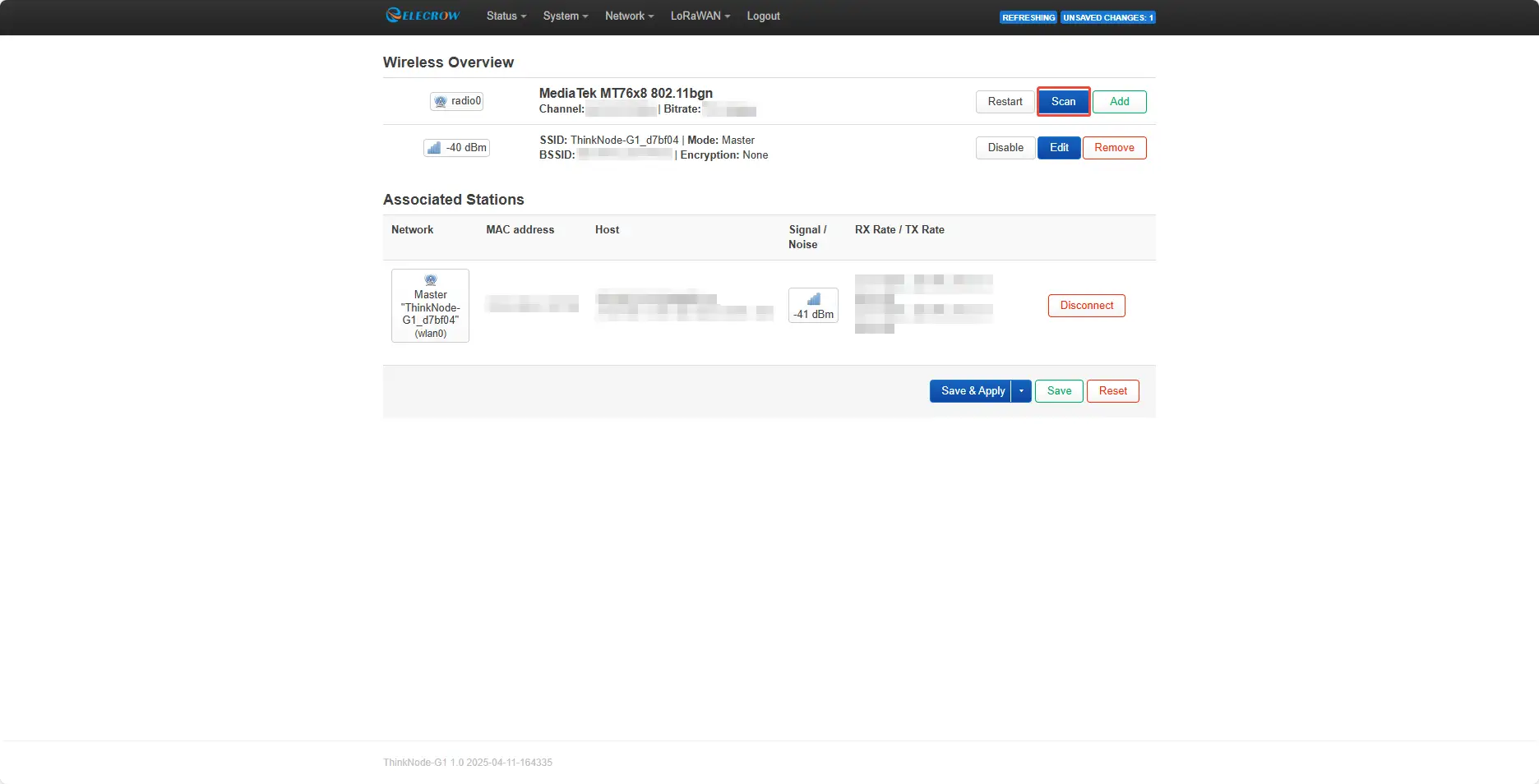
2.5.2.2 Select “Network” ,then click “Wireless”.
2.5.2.3 Click “Scan” to scan for available networks.
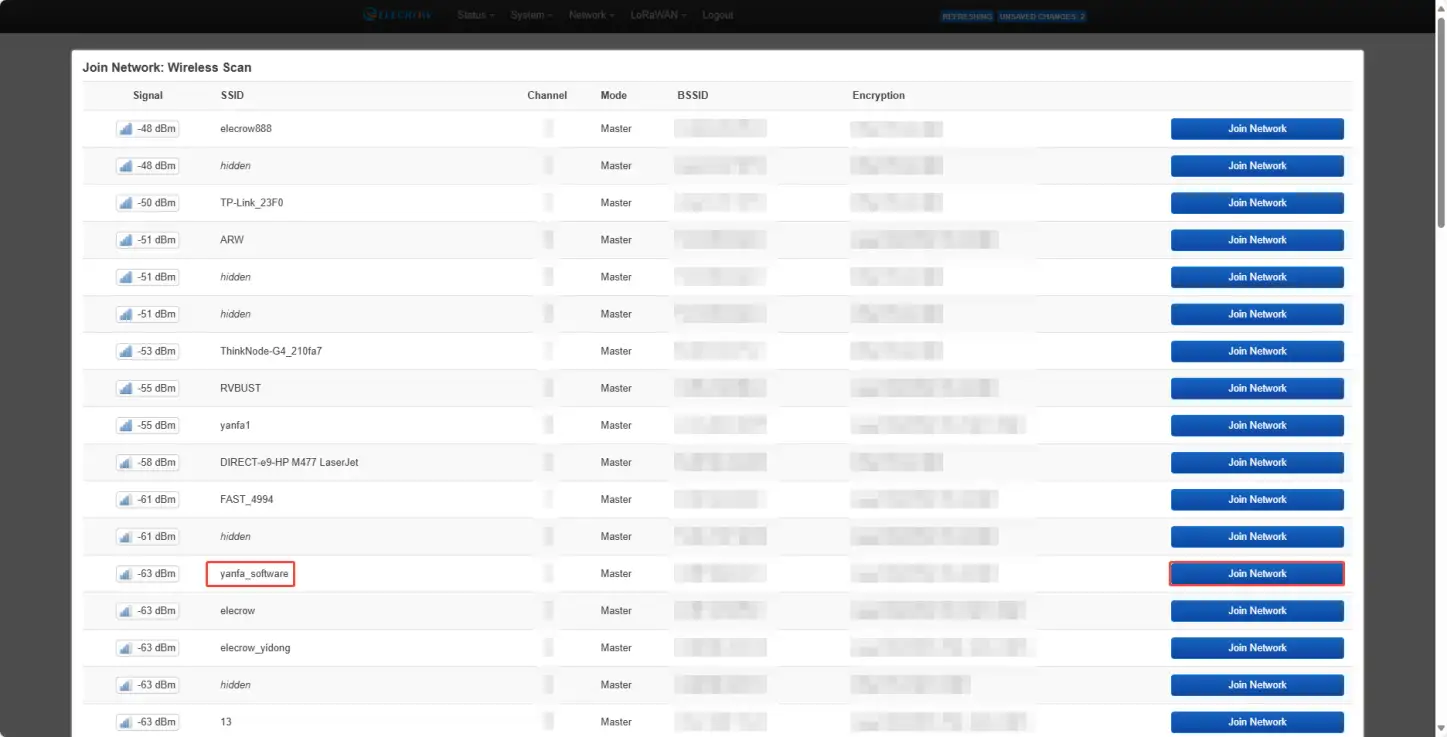
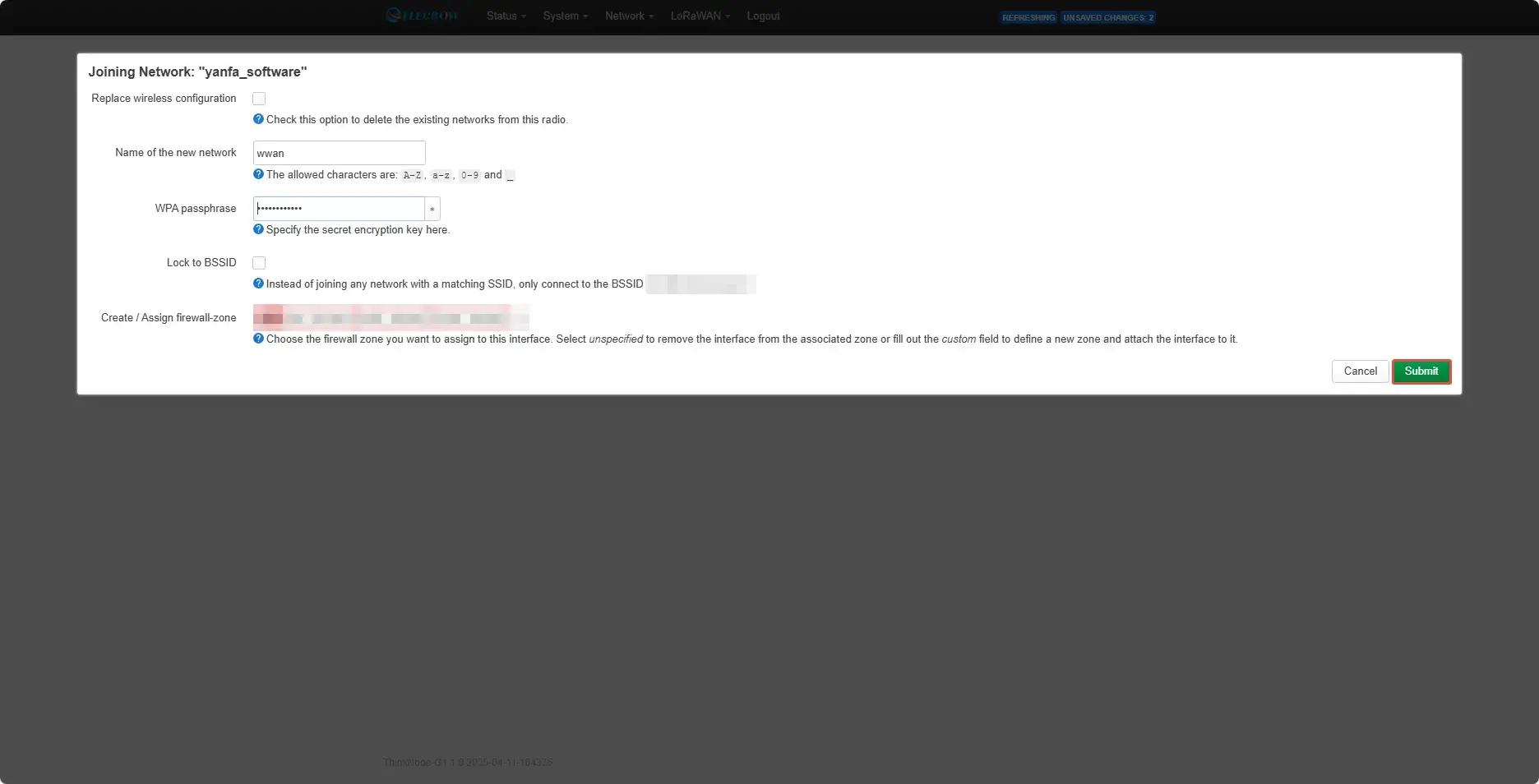
2.5.2.4 Select the network you want to connect to, click the “Join Network” button, enter the password to connect, click “Submit” to submit the information, and click “Save” to save the network details.
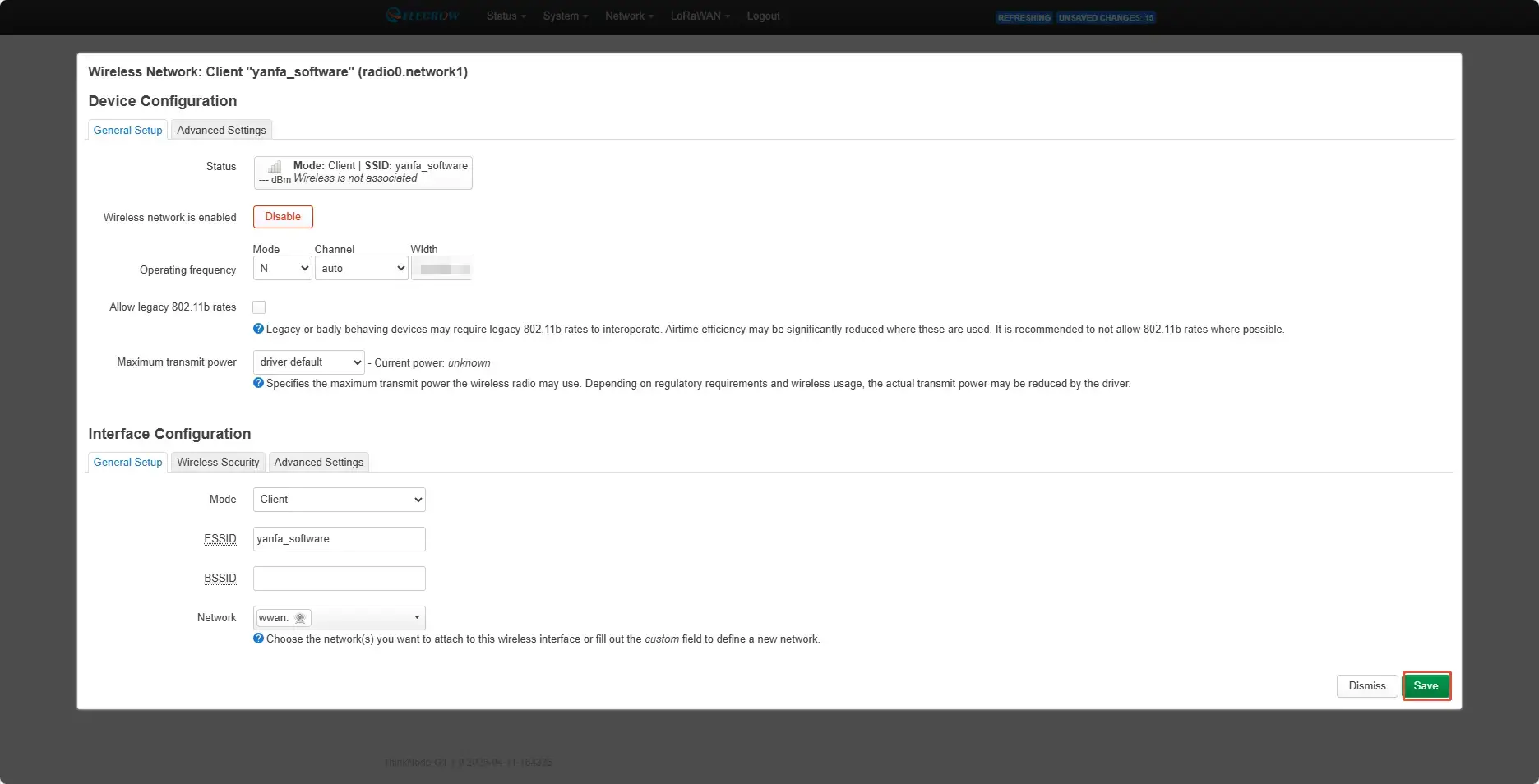
2.5.2.5 Click “Save & Apply” to proceed with the gateway configuration.
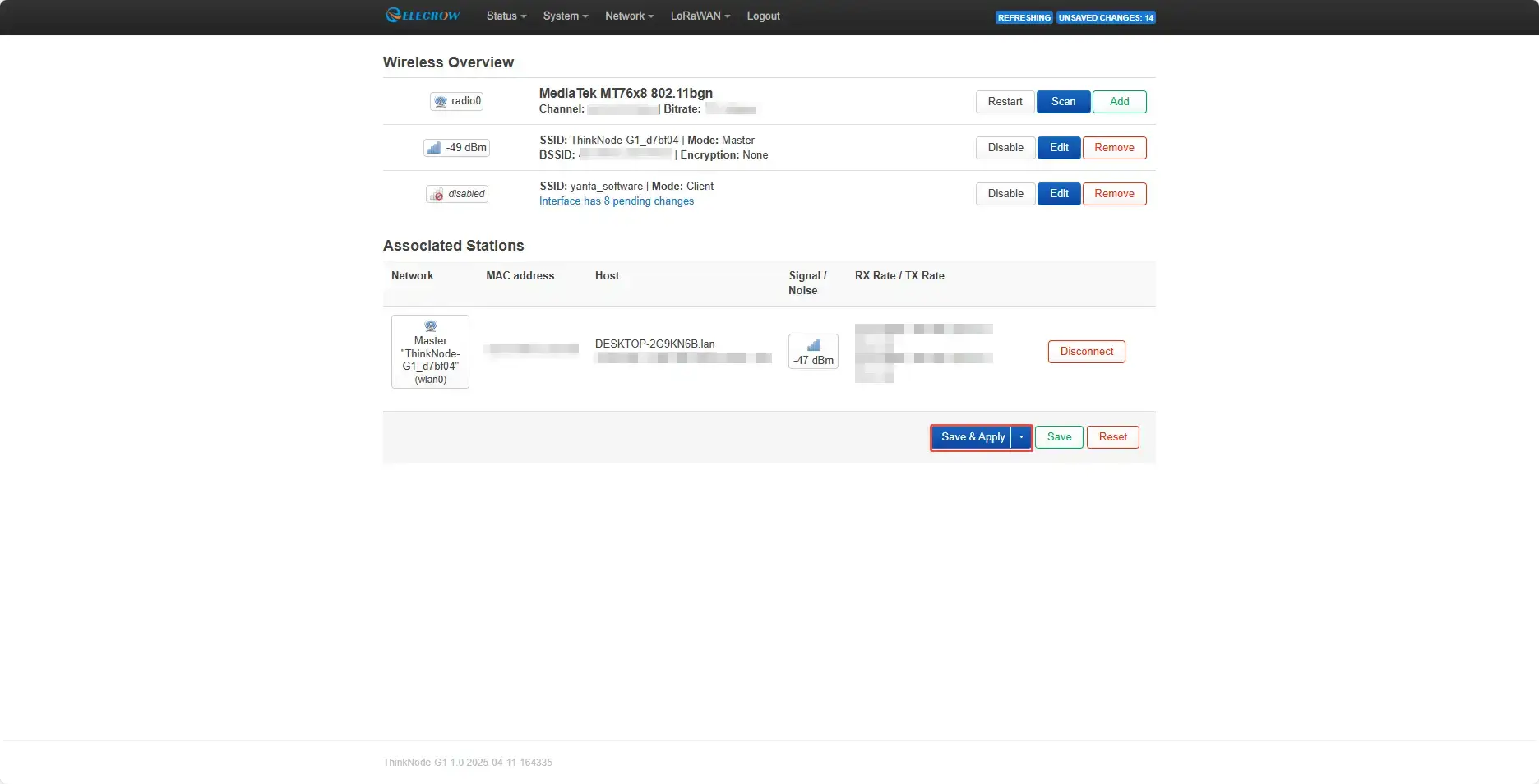
2.5.2.6 Wait for the configuration to complete.
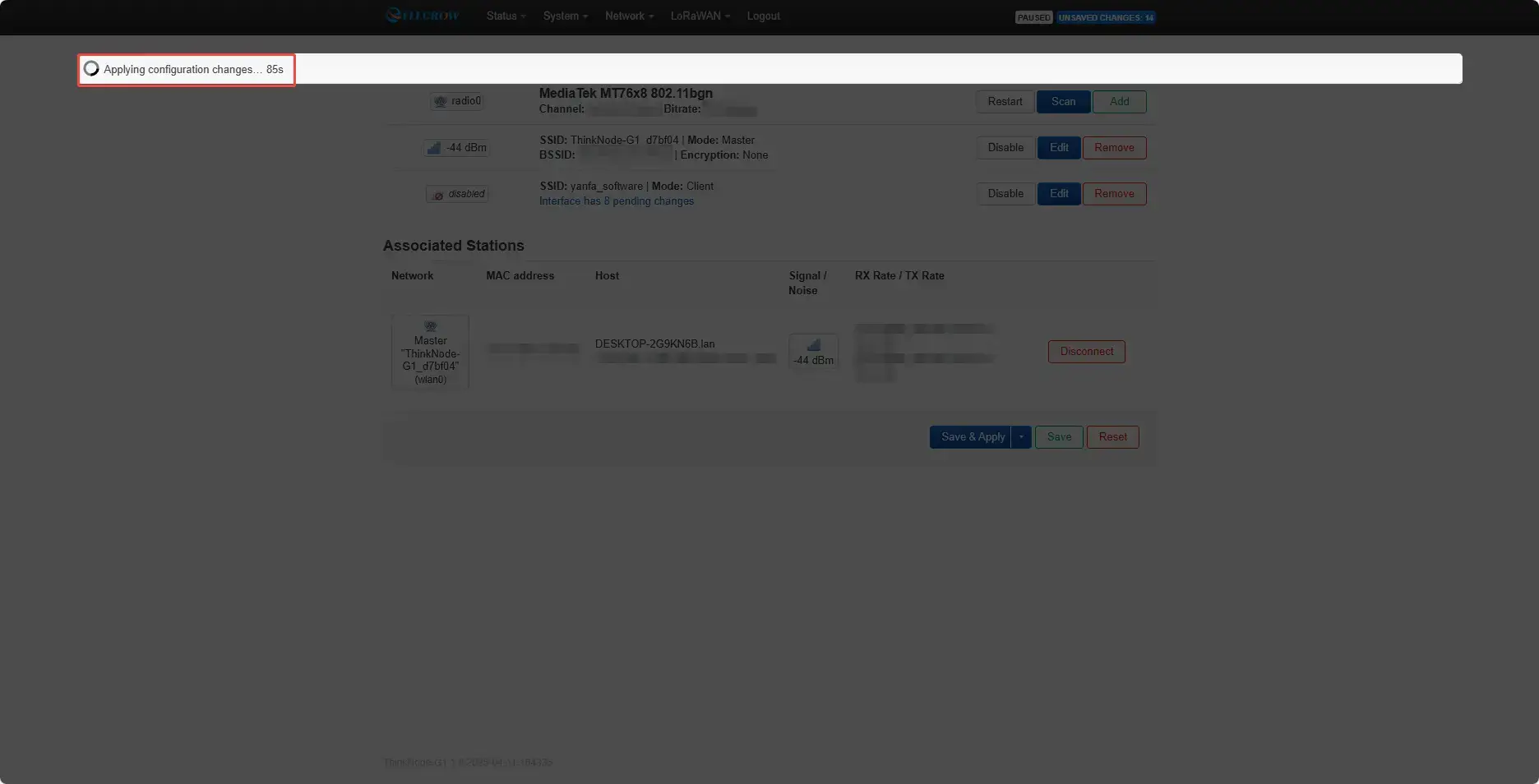
2.5.2.7 Configuration successful. Wait for the gateway’s LoRa indicator light to turn green.
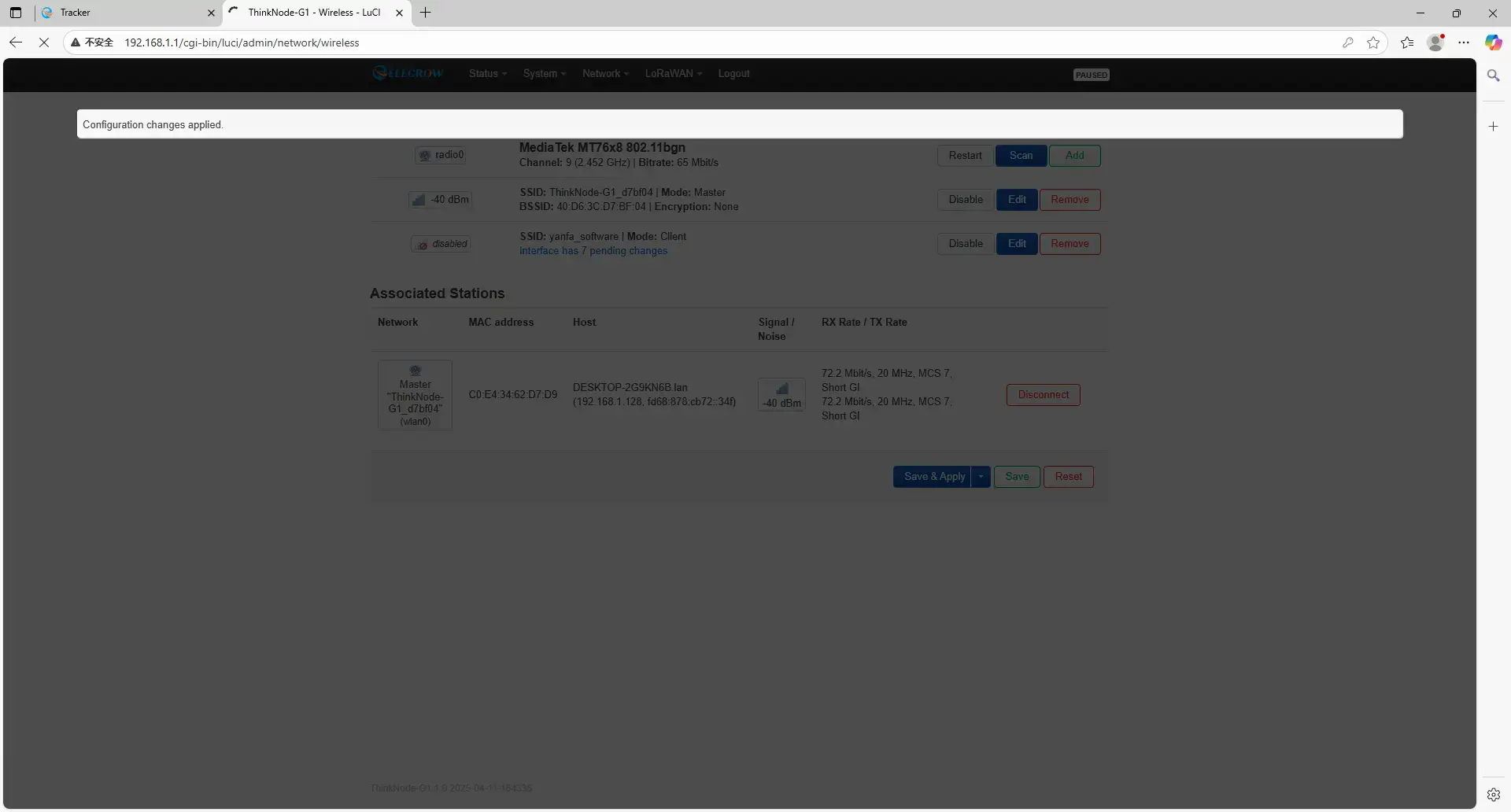
3.Adding a Gateway via the ThinkNode-M3 Web Interface
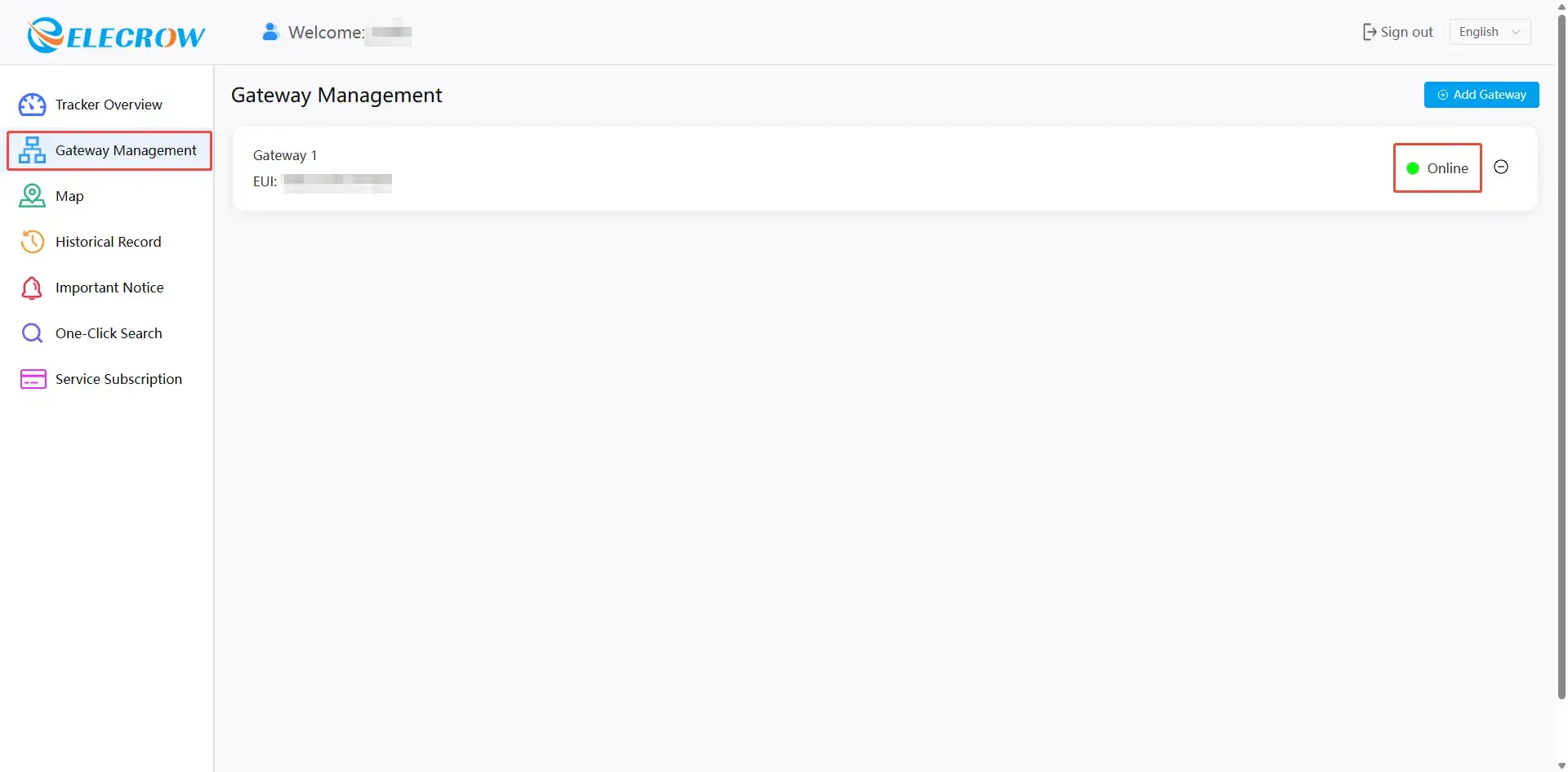
3.1 Switch to a network with internet access (for Ethernet connections, select any available network; for Wi-Fi connections, select the Wi-Fi network saved in the gateway’s web interface), then return to the website: https://web.thinknode.cc/, select “Gateway Management,” click the “Add Gateway” button, enter the previously copied string in the Gateway EUI field, customize the gateway name, select the region, and click the “Add” button to add the gateway information to the web interface.
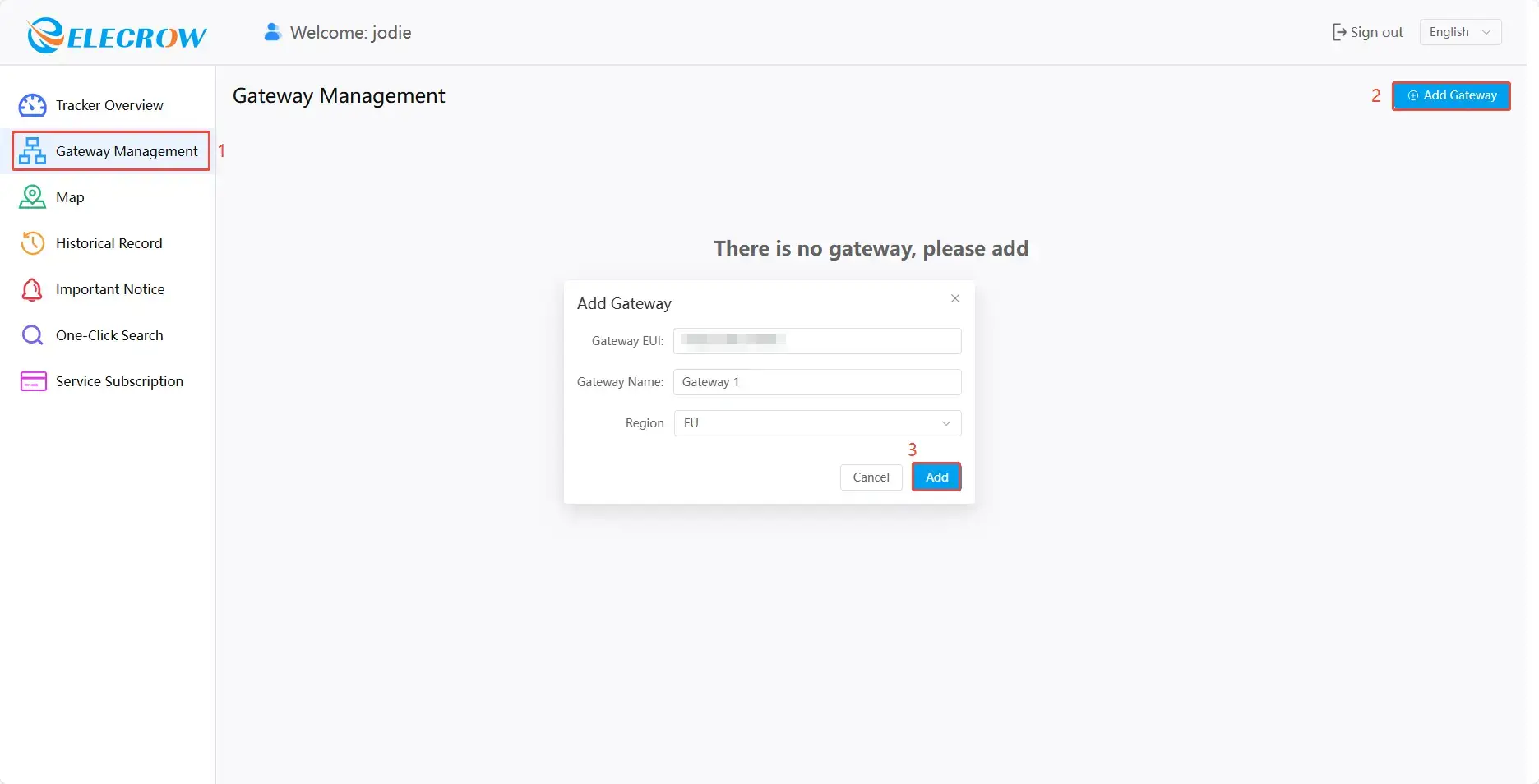
3.2 Refresh the page; the gateway status should now display “Online,” indicating that the gateway has been successfully configured.
4. ThinkNode-M3 Network Registration
4.1 Press and hold the button on the ThinkNode-M3 device for 5 seconds to power it on. After the buzzer sounds for 3 seconds, the green light will cycle on for 2 seconds and off for 1 second, indicating that the ThinkNode-M3 device has successfully powered on. While the device is powered on, press the button twice to initiate network configuration. The blue LED will cycle on for 1 second and off for 1 second, followed by a single beep. The blue LED will then turn off, and the device will return to the green LED cycle (on for 2 seconds, off for 1 second), indicating successful network registration.
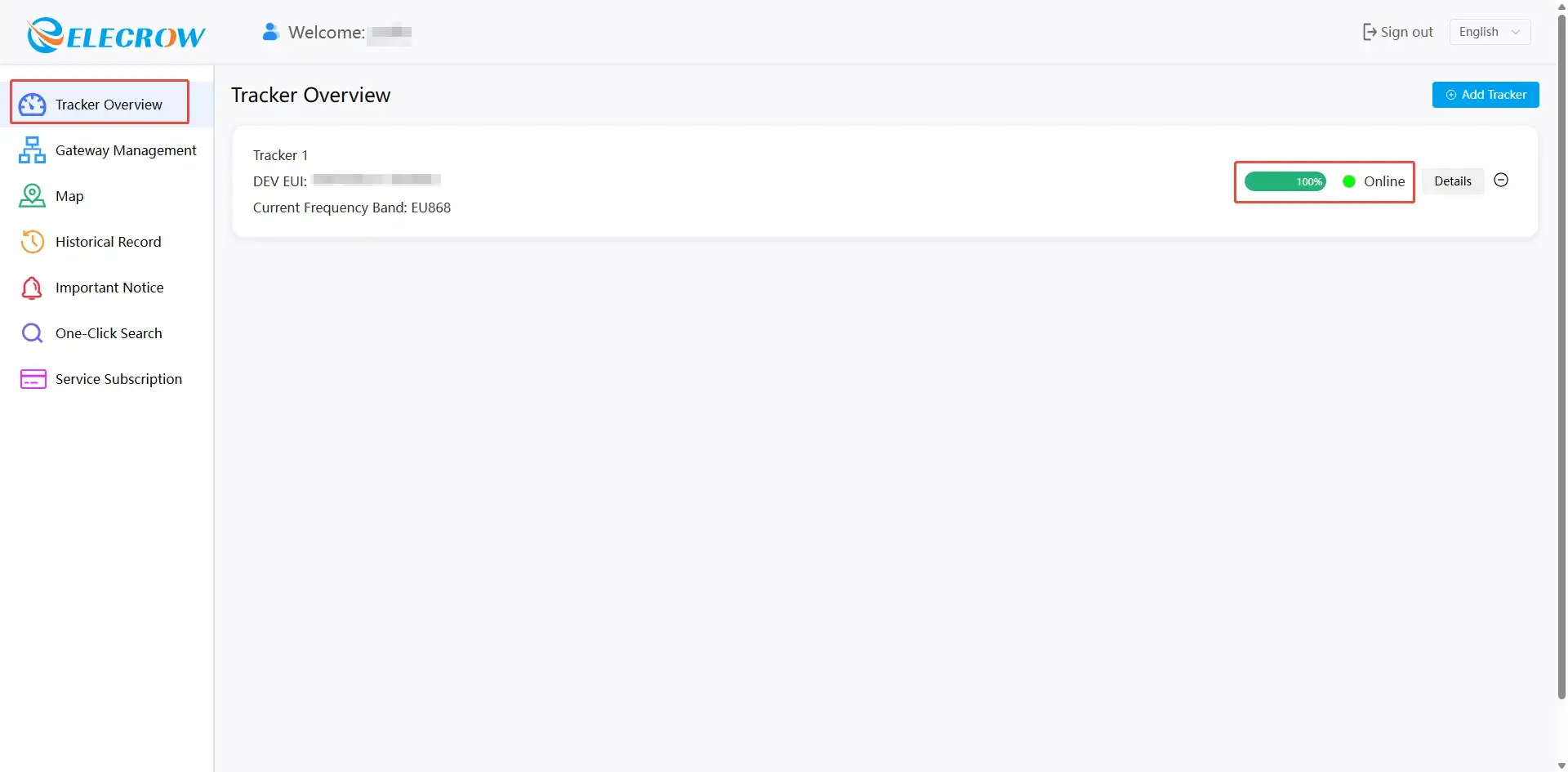
4.2 Select “Tracker Overview.” The tracker status will now display as “Online.” Click the “Details” button, set “Operating Mode” to “Normal”or “trigger”(Trigger mode, with a reporting interval of 1 minute, is slightly faster than Normal mode.), and wait for the page to refresh. Information such as battery level will then appear.
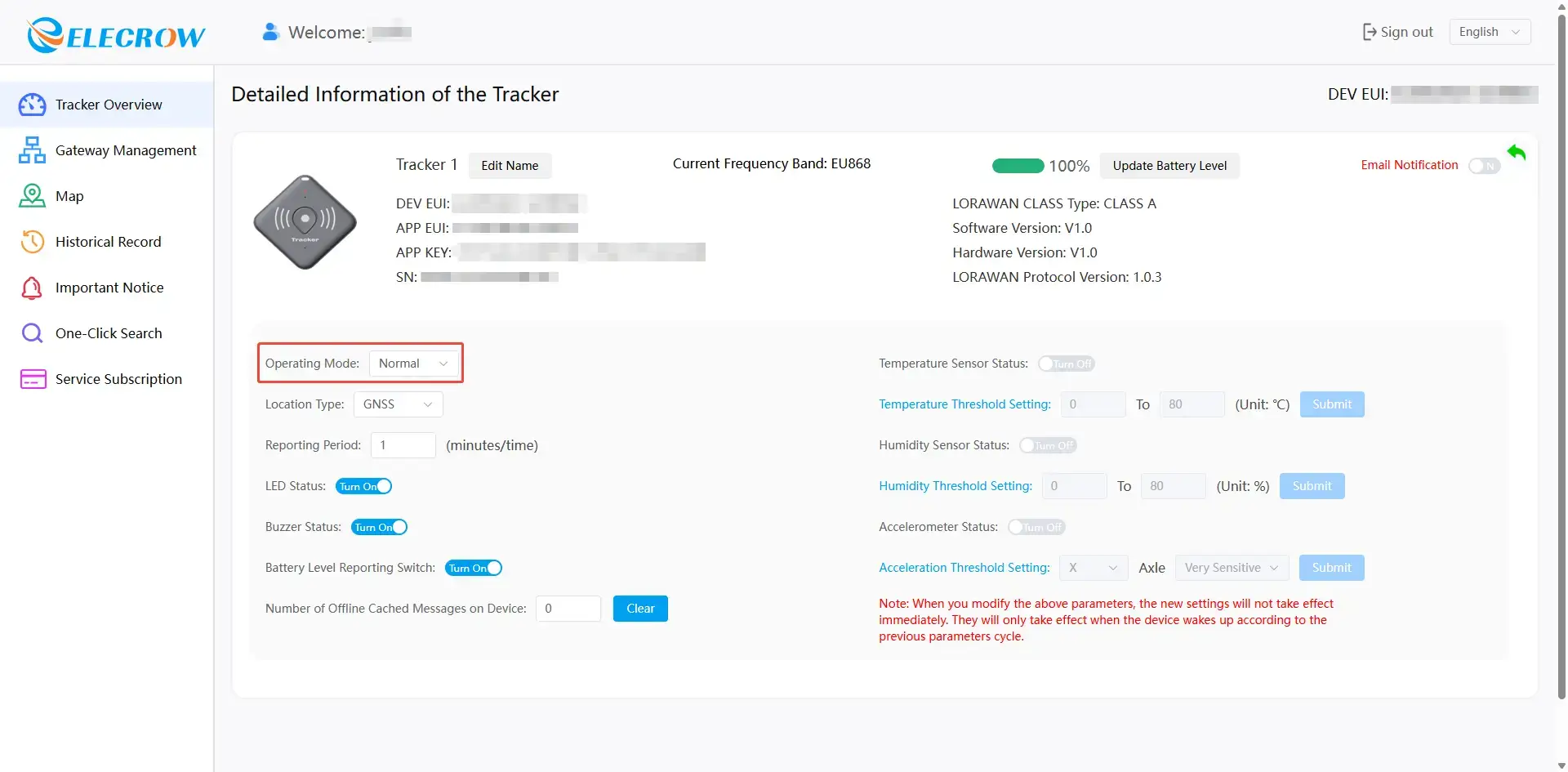
Configuration is complete, and you can now use the tracker’s functions normally.
How to buy
Please visit this page to purchase ThinkNode M3 lorawan Tracker.
Support
If you have any problem about how to use it, you can connect to us at the bottom-right of bazzer or contact to techsupport@elecrow.com to get technology support.